Write on the music.
Draw with the pencil or highlighter. Add text, lines, and musical stamps. Put the cue where you need it.
ScoreMux: SHEET MUSIC iPad + iPhone
Bring your PDFs. Mark the part.
Put your next set in order.
Coming to the App Store. iPhone and iPad.
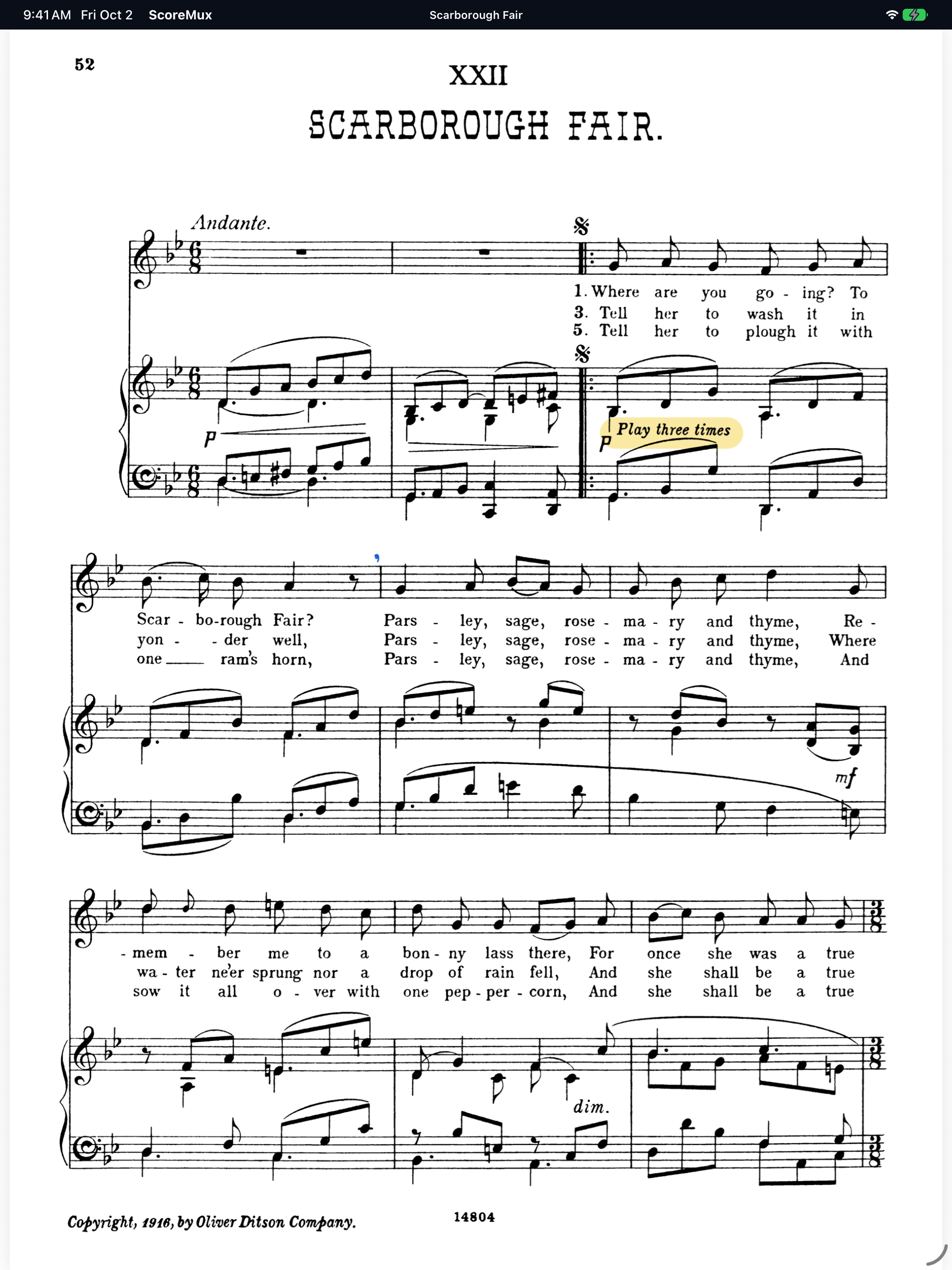
Read and mark your original music.
YOUR MUSIC LIBRARY
THE SHORT VERSION
A library for your own sheet music, with the tools to get it ready for rehearsal.
YOUR BOOKS, MADE NAVIGABLE
FIND → OPEN → PLAY
A large PDF can hold dozens of songs. Read its contents or index, then look up an individual song by name and open its page.
ILLUSTRATIVE SONG INDEX
Pick a title to reveal the real score artwork.
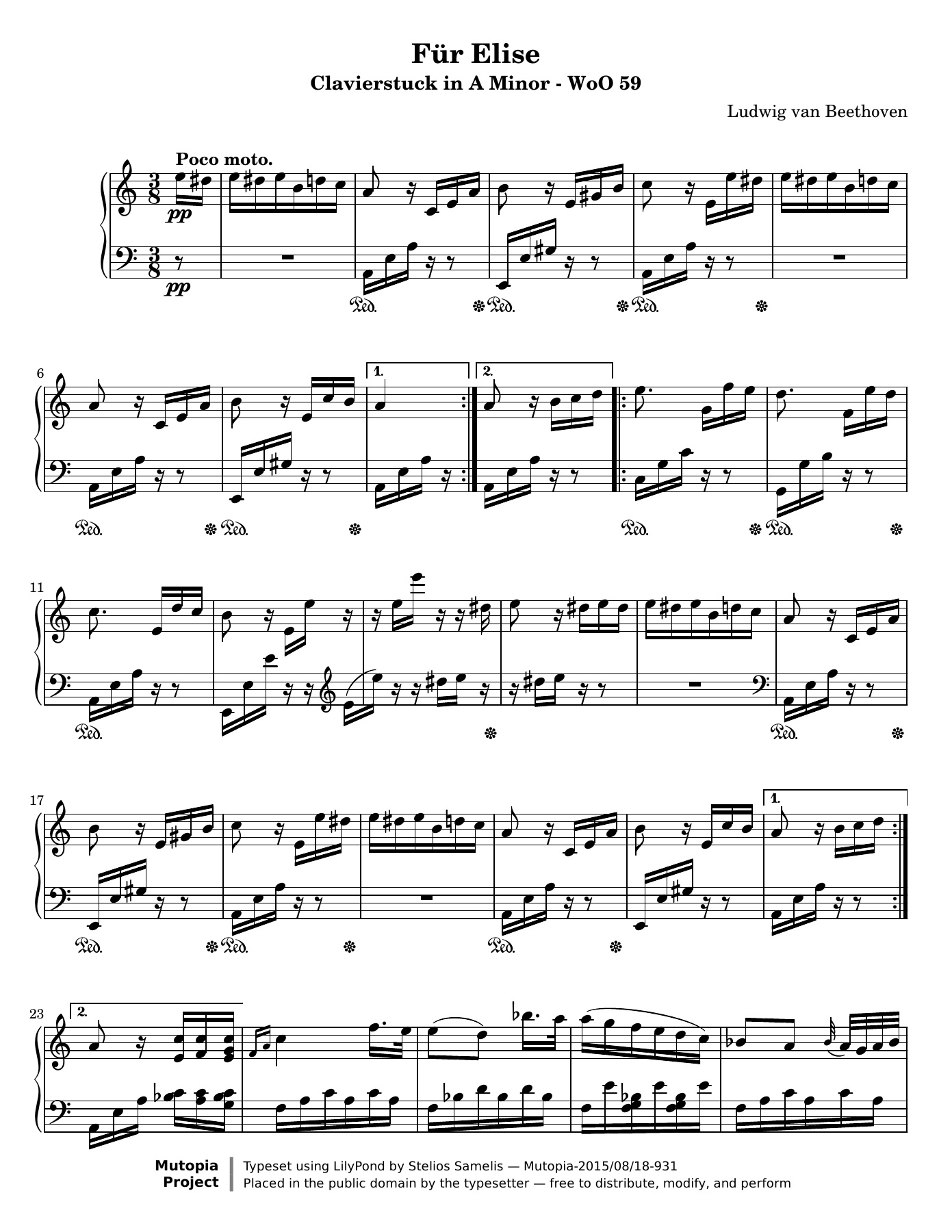
Für Elise score shown.
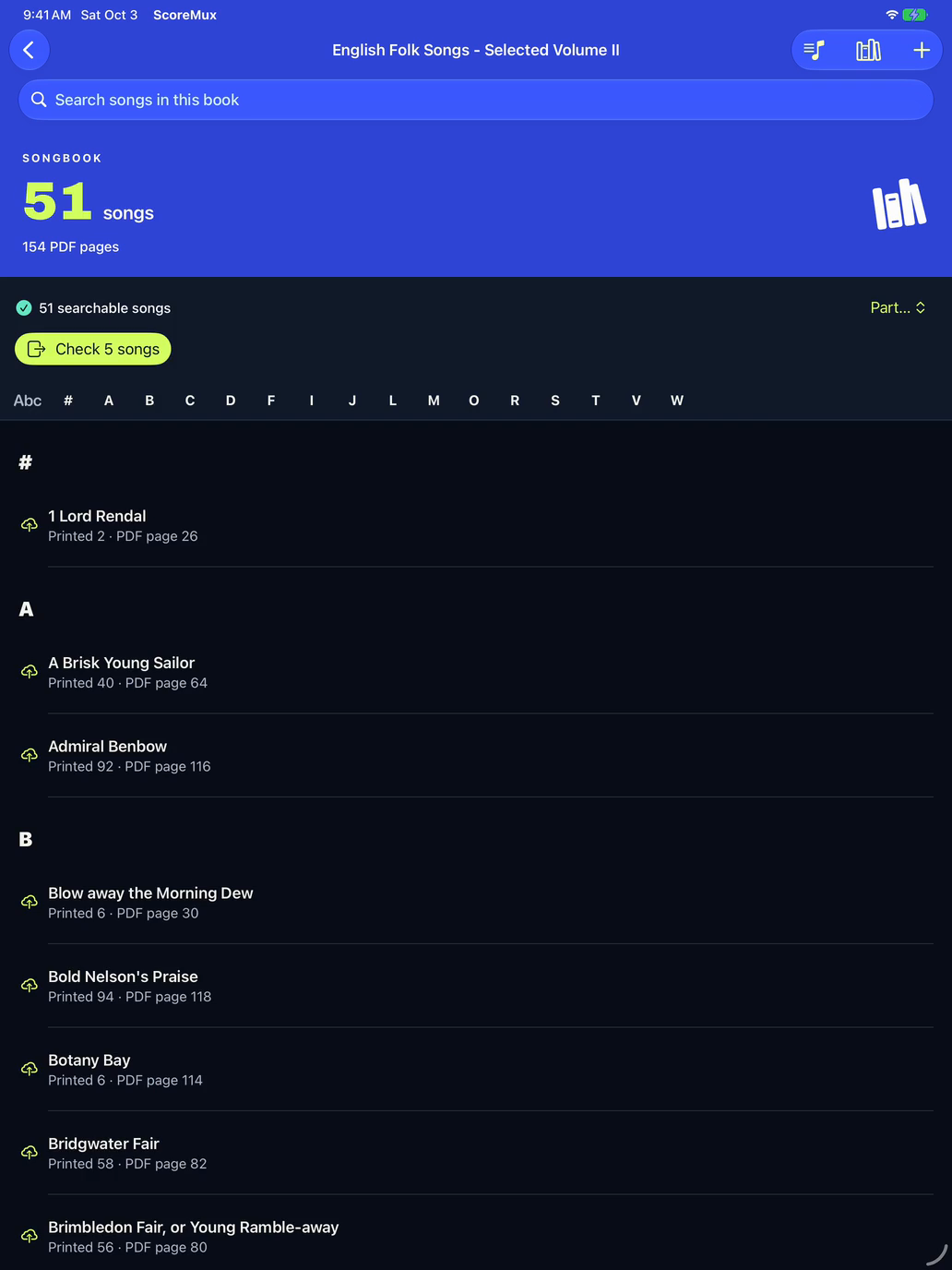
BOOK INDEXING / REAL APP RECORDING
Index the book’s contents and find usable songs straight away. This result has 51 searchable songs and five questions. Open the ready songs now; check uncertain titles when you choose.
Select Watch to view the recording. This recording is silent.
51-SECOND EDITED OVERVIEW · NORMAL SPEED · SILENT
Indexing took 141 seconds in this recording. This overview omits 133 seconds of that wait; nothing is sped up.
This recording shows starting-page results. It does not show complete automatic song ranges.
Earlier app capture · CECIL J. SHARP
English Folk Songs—Selected Edition, Volume II: Songs and Ballads · Novello · c. 1919
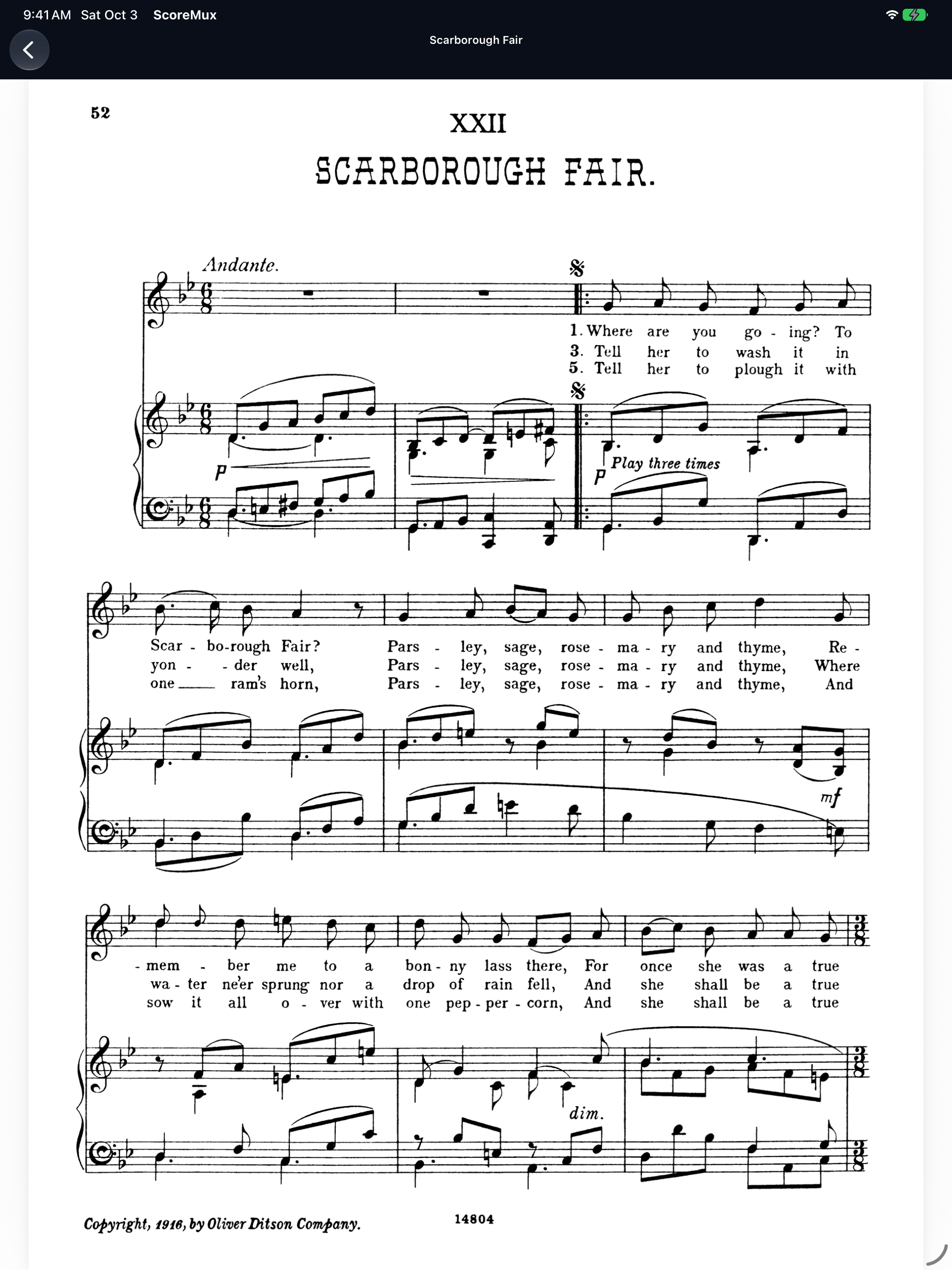
BOOK INDEXING / FULL SUPPLIED WALKTHROUGH
Watch the full 3:20 walkthrough, including the complete 141-second indexing wait, the 51-song result, five review prompts, search, and the first notation page.
Select Watch to view the recording. This recording is silent.
200 SECONDS · NORMAL SPEED · SILENT
Genuine recorded takes joined. The entire indexing wait is retained.
The walkthrough ends at Scarborough Fair’s first page. It does not demonstrate complete automatic song ranges.
TITLE FINDING
PAPER → YOUR LIBRARY
Use a set list to find music you already own.
Select titles in a PDF set list. Check the matches in your library, including songs indexed inside your books.
FROM LIST TO SET
Your collection supplies the music. You choose the matches.
The recording shows Smudge with a PDF set list.
SMUDGE / REAL APP RECORDING
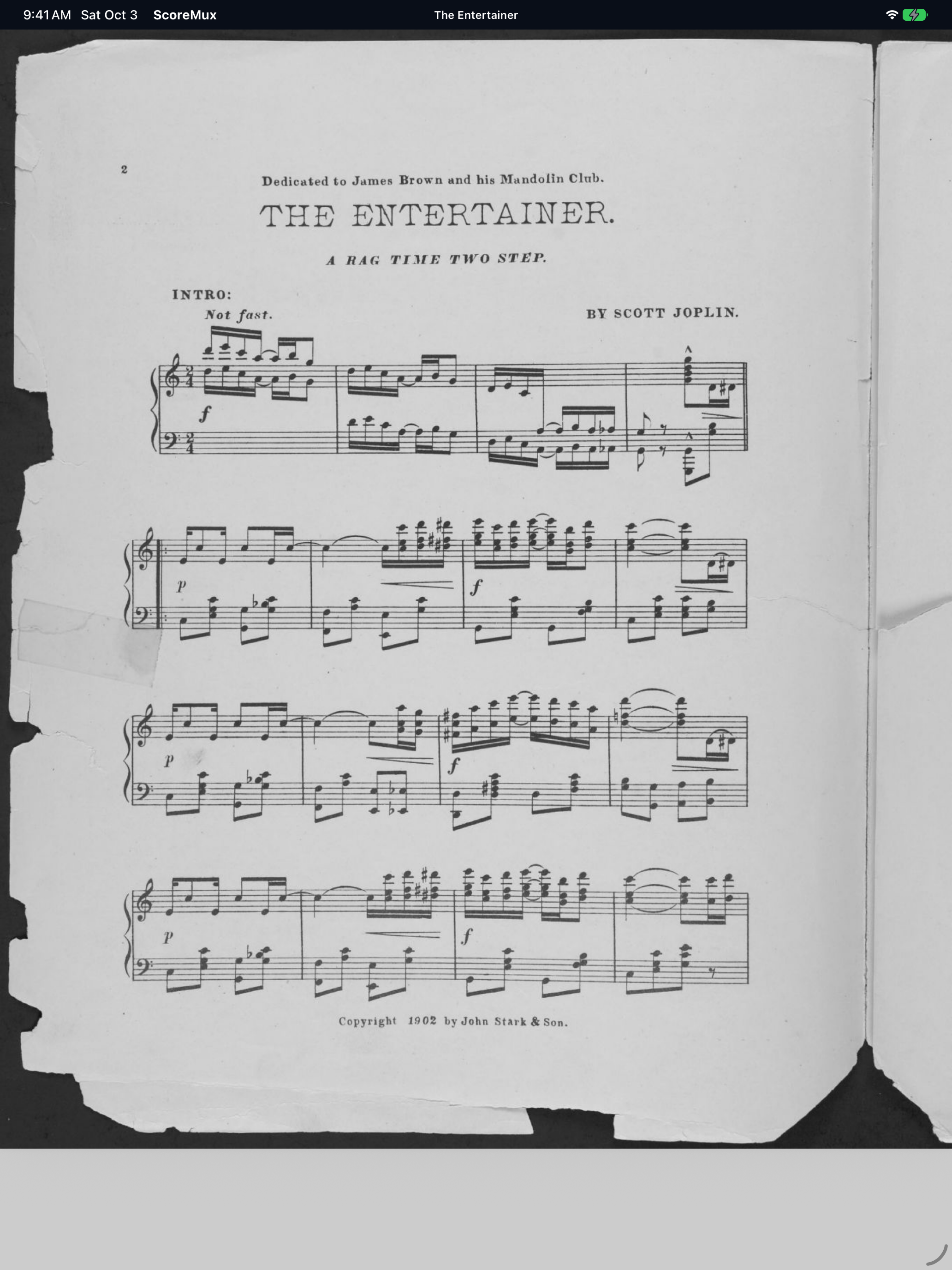
Brush four titles in a set list. Review four ready matches from your own library, save the four-song set, then open The Entertainer at page 1 of 4.
Select Watch to view the recording. This recording is silent.
63-SECOND CONTINUOUS CAPTURE · NORMAL SPEED · SILENT
Earlier app capture · Silent app recording
This recording uses a PDF set list with a text layer. Camera input and OCR fallback are not demonstrated here.
READY FOR REHEARSAL
THE DETAILS THAT MAKE A PART YOURS
A cue you’ll remember.
A part you can trust on the stand.
TRY THE WEB ILLUSTRATION
A highlight, a slur, text, and musical stamps. Toggle the web marks to see what they add.
Website illustration on an original score. The reader capture above shows actual app marks.Illustrative rehearsal marks are visible.
Draw with the pencil or highlighter. Add text, lines, and musical stamps. Put the cue where you need it.
Borrow musical passages from aligned instrument parts. Prepare the music you need for the chair you play.
Reorder songs in a set list to match tonight’s programme. The same music, in the order you need.
SET ORDER / WEB ILLUSTRATION
Try moving Amazing Grace up the running order. This explains the task; it is not a native app control.
Example running order. Changes affect this illustration only.
FOR THE PIT
ONE CHAIR. SEVERAL BOOKS.
A Reed player can juggle several instrument books in one show. Keep those books together, find the song, and borrow the passage you need from an aligned part.
Keep your instrument books under the show. Follow its song index across the parts.
Select a measure span in your working part, then choose the passage from an aligned instrument book.
Place the borrowed music and check it in context. Add the cues you need for rehearsal.
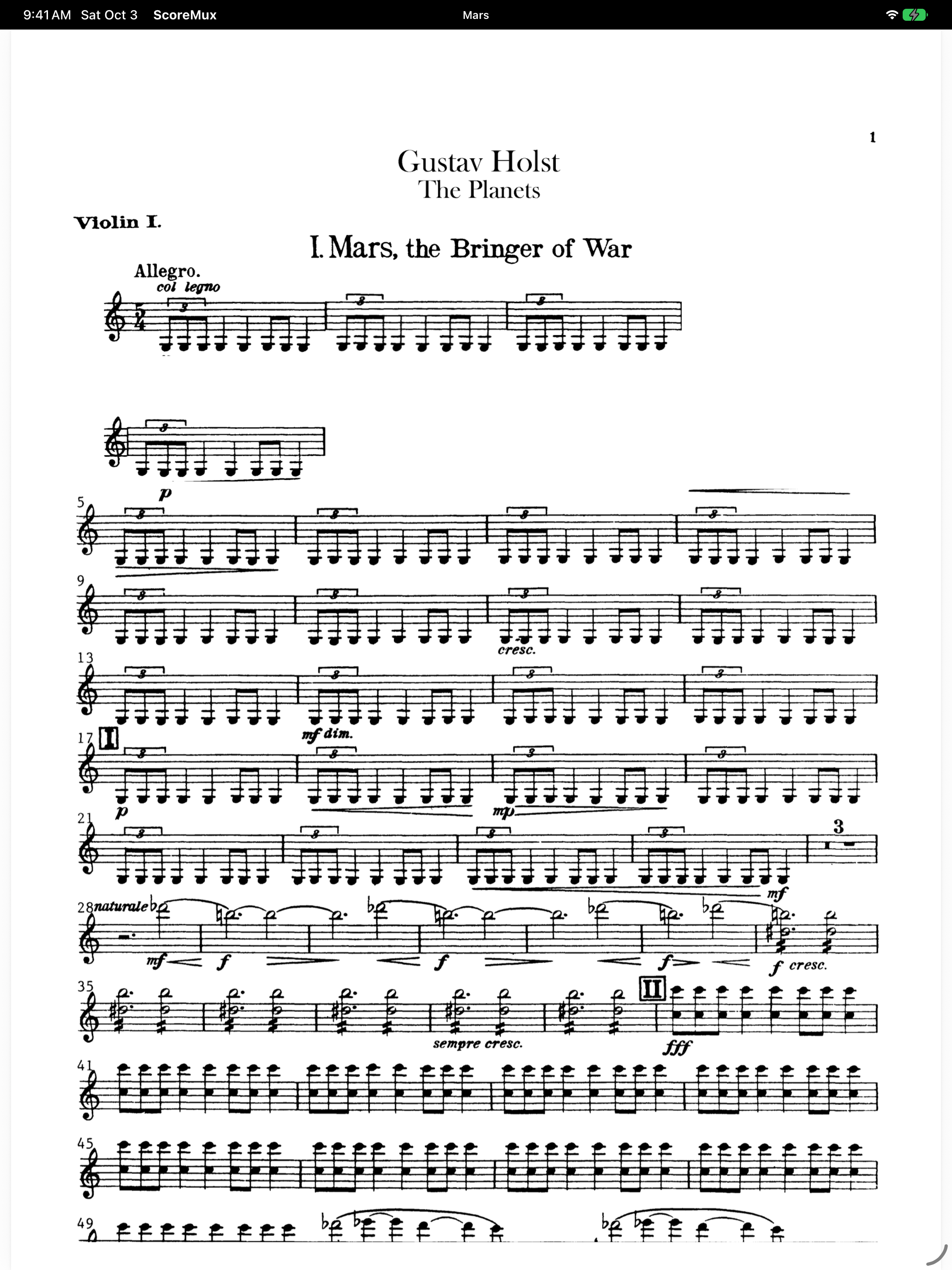
Website diagram. The recording below shows the same borrowing task with violin parts.
BORROWING / REAL APP RECORDING
Borrow a passage from the aligned Mars Violin II book into Violin I, save the inline placement, and read the result. Both source parts remain unchanged.
Select Watch to view the recording. This recording is silent.
Earlier app capture · 38 SECONDS · NORMAL SPEED · SILENT
Earlier development build.
This is a violin example. The Reed-chair workflow above is a website illustration.
THE WHOLE APP
MADE FOR THE MUSICIAN’S DAY
Solo practice, an orchestra chair, or the pit. ScoreMux keeps the music and the preparation together.
Import PDFs, scan with this device’s camera, or use a nearby iPhone camera while your iPad stays on the stand.
Mark the music, arrange your set, and prepare a working part from aligned instrument books.
Record yourself with microphone audio or MIDI. Hear the take back with recorded page turns, and keep a journal for lesson review.
Share music and marks when you choose. With iCloud sync enabled, supported saved work can sync across your own devices.
ALREADY TIDY?
You’ve put the books in the right folders. Review how those folders map to sections and chairs, then keep that organization when you import.
Show /
  Woodwinds /
    Reed 1 /
    Reed 2 /
A MIXED DOWNLOAD?
A mixed folder of downloads may need some attention. Review the folder roles, parts, and tags before confirming the import.
Rehearsal download /
  Flute.pdf
  Brass parts /
  Concert programme.pdf
You review the folder roles before the import.
Folder examples are website diagrams. The recording shows the actual app workflow.
BRING MUSIC IN / REAL APP RECORDING
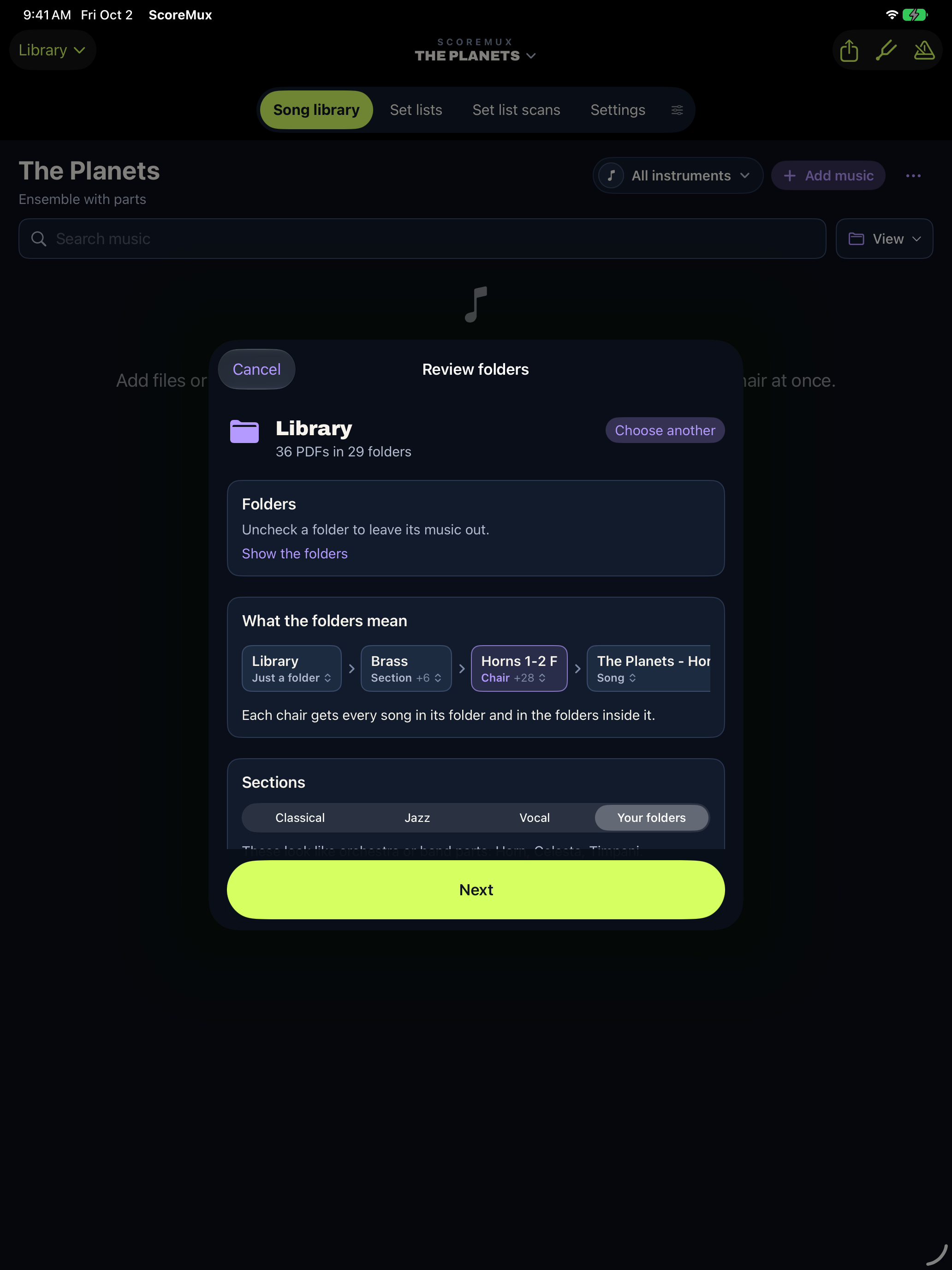
Choose a folder of PDFs, review its sections and chairs, then import the music into your library. See an edited overview with Holst’s The Planets, from the folder to the organized List view.
Select Watch to view the recording. This recording is silent.
57-SECOND EDITED OVERVIEW · NORMAL SPEED · SILENT
Navigation and repeated steps trimmed. Actual import processing retained.
FOLDER SETUP / THE FULL WALKTHROUGH
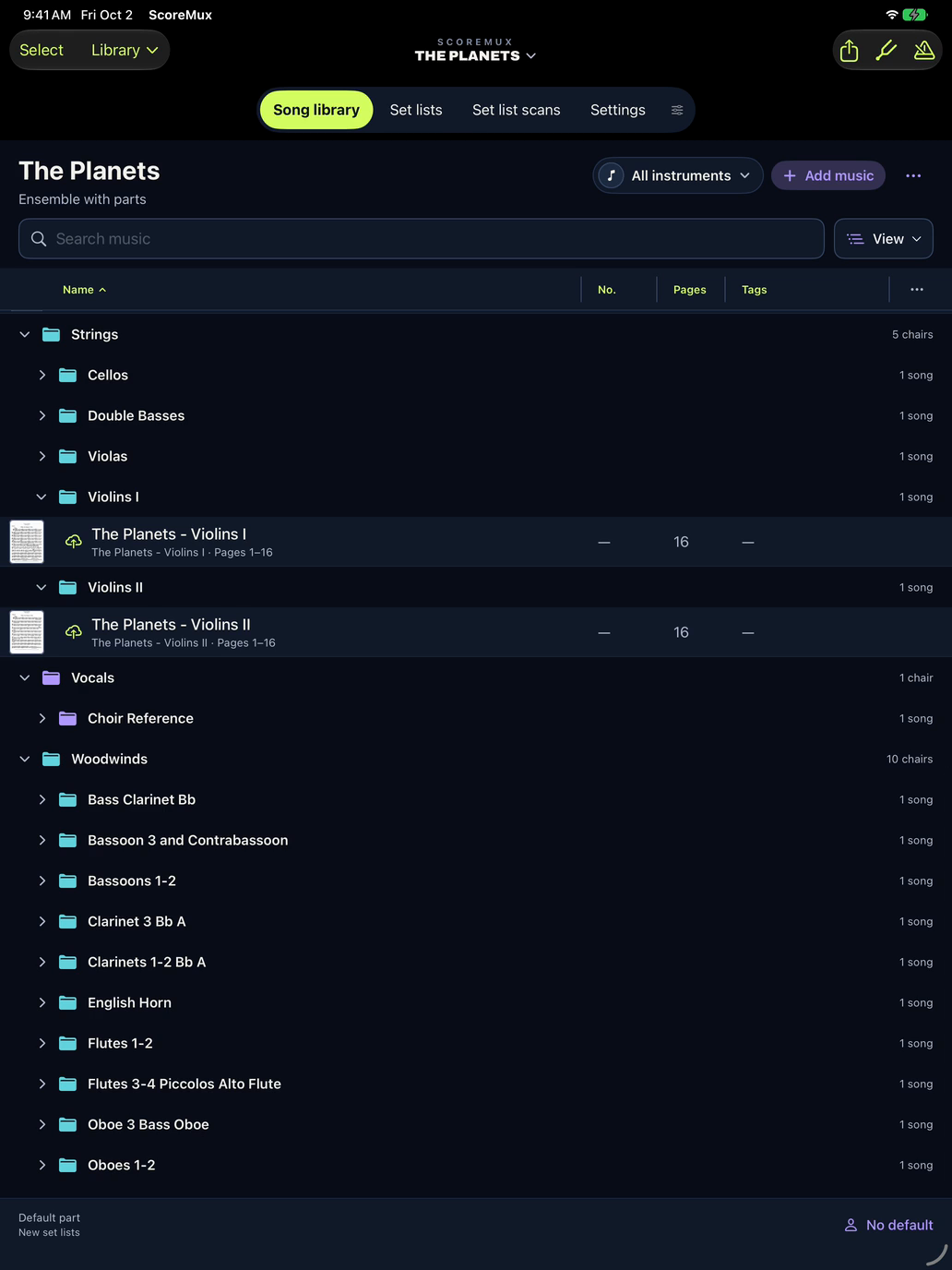
Watch the folder navigation, setup review, and import. Explore seven family sections showing 29 chair rows across the library. Selected chair folders open to reveal real score rows.
Select Watch to view the recording. This recording is silent.
2 MINUTES 10 SECONDS · NORMAL SPEED · SILENT
Two recorded takes joined. Actual import processing retained.
PRACTICE / INCLUDED WITH SCOREMUX
PLAY → LISTEN → LEARN
Keep the score, your takes and your notes together. Listen back and choose what to practice next.
Record microphone audio or MIDI. Choose Timer when you want to log practice without recording.
Listen again with the original score and the page turns you recorded while playing.
Write a practice journal. Review your notes and sessions before your next lesson, and keep the next work in view.
Practice is included on iPhone and iPad. Microphone takes are saved as audio; Timer records no audio. Saved recordings can sync through your private iCloud when sync is enabled. Share a saved take when you choose. How recordings are stored →
Keyglow / OPTIONAL iPad ADD-ON
Play the on-screen keyboard, connect a MIDI controller, or play an imported MIDI or MusicXML song. Choose a sound and a look.
OPTIONAL ON iPAD · US$7.99 / YEAR
Decorative color study. No sound or app controls.
START WITH THE SOUND
Play a grand piano with the on-screen keys or live MIDI. Choose instruments, then add the visual look that suits the music.
BRING A SONG
Import MIDI or MusicXML songs into Keyglow. A PDF book can sit alongside as your score; it does not generate the performance.
CHOOSE A LOOK
Keep it restrained, let the rain fall, or turn up the flames. Adjust rain and storm settings, choose a tent cover, or change fire’s pitch and key colors.
SHAPE THE SOUND
The organ engine has nine drawbars, percussion, and rotary controls. Explore the instruments without making every tune a fire show.
SPACE + ECHO
Add reverb or echo. Hear how the room and the repeating notes change the character of your playing.
TWO SOUNDS
Layer two sounds across the keyboard, or split it between two instruments. Choose the setup for the part you play.
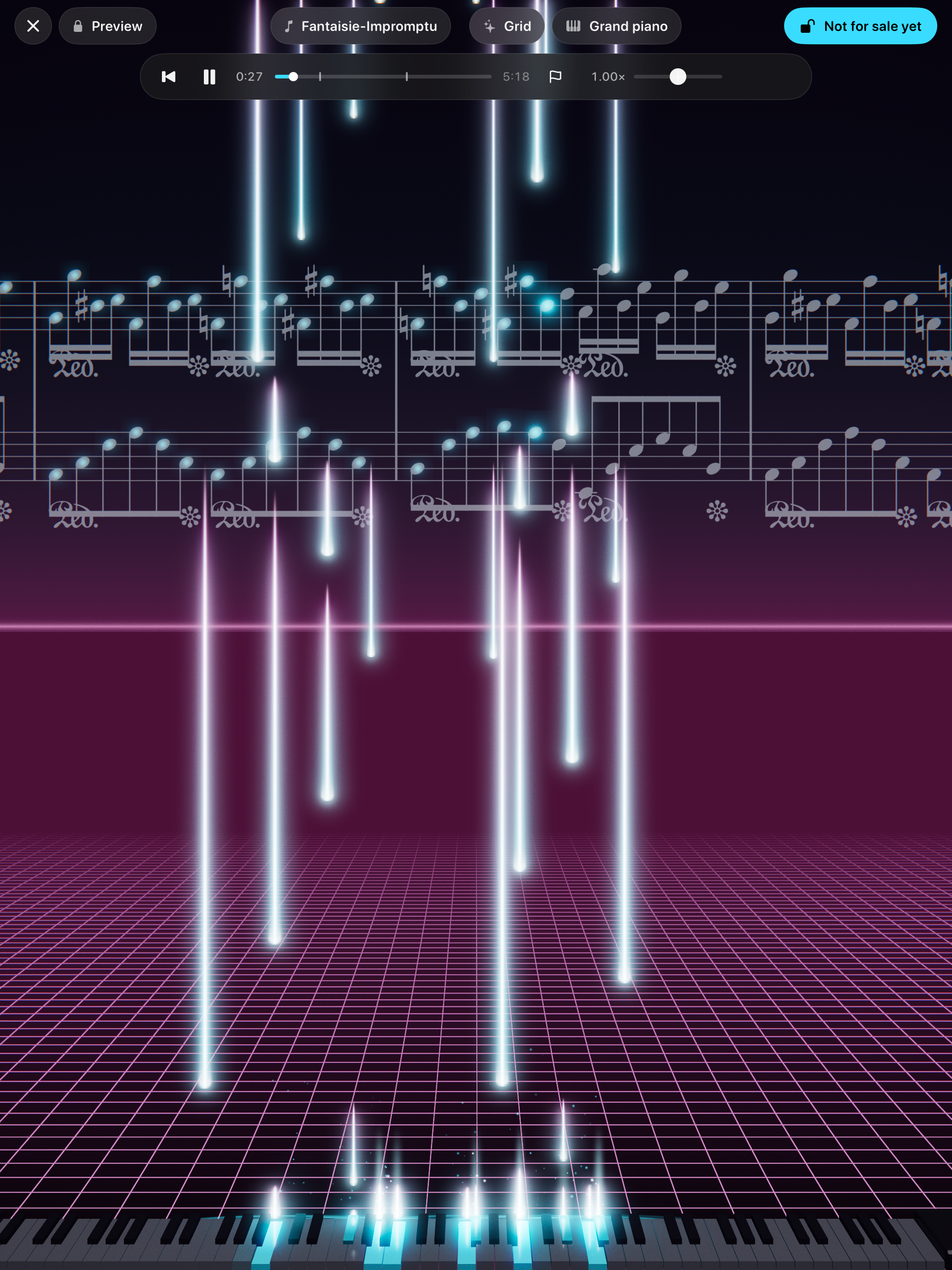
Keyglow / REAL APP PREVIEW
A genuine silent simulator preview. Watch the animation, then see the native look picker change from Ember to Grid.
Select Watch to view the recording. This recording is silent.
Earlier app capture · 25 SECONDS · NORMAL SPEED
Preview · silent simulator visualization. Optional iPad add-on.
This silent clip shows the locked simulator preview and look picker. It does not demonstrate live input, sound or an unlocked performance.
PLANNED U.S. PRICING
KEYGLOW / ANNUAL SUBSCRIPTION
ScoreMux brings the sheet music tools together. Practice is included in the base app. Keyglow is optional on iPad.
ScoreMux: Sheet Music / iPad + iPhone
US$14.99
One-time base purchase
Books, musical marks, set lists, title finding, and preparation. Tuner, metronome, and Practice included.
PRACTICE INCLUDEDOPTIONAL ADD-ON / iPad
US$7.99
Annual auto-renewing subscription
The visual stage, instruments, session recording and video, audio or MIDI exports. Optional on iPad.
Watch the real previewScoreMux is not yet available on the App Store. Prices shown are the planned U.S. prices in USD. Keyglow costs US $7.99/year and renews automatically until canceled. Other storefronts use local currency and prices. Library and Practice work without Keyglow. Subscription, cancellation and restore help →
ScoreMux: SHEET MUSIC / iPad + iPhone
Questions about the app or its launch?
Email us ScoreMux is not yet on the App Store.With private iCloud sync enabled, supported saved work can sync across your own devices. Choose which music to keep on the device, and download it before going offline. Share copies when you choose.